 |
Radical Pie Equation Editor |
The Editor Configuration dialog contains settings that pertain the the editor environment and don’t affect the appearance of an equation. The Editor Configuration dialog is shown below, and it is opened by selecting Editor Configuration... from the Settings menu.
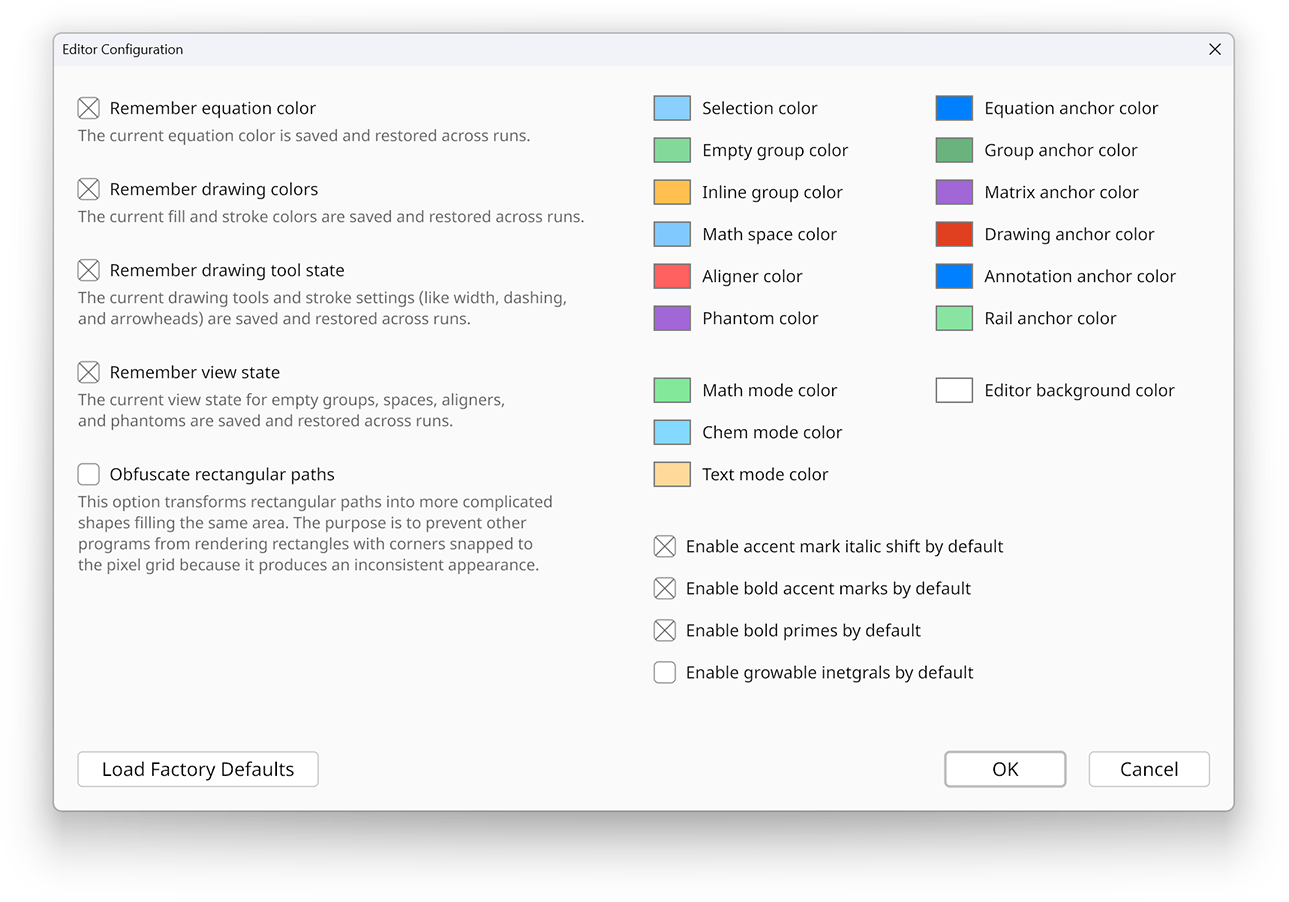
The Load Factor Defaults button resets all options and colors in the Editor Configuration dialog to the default settings.
If the Remember equation color box is checked, then the current equation color is saved and restored across runs. If this box is not checked, then the equation color is reset to black each time Radical Pie starts up.
Similarly, if the Remember drawing colors box is checked, then the current fill color and current stroke color, used for drawing objects, are both saved and restored across runs. If this box is not checked, then the fill color is reset to a default palette color and the stroke color is reset to black each time Radical Pie starts up.
If the Remember drawing tool state box is checked, then the current line and shape drawing tools as well as the current stroke settings are all saved and restored across runs. If this box is not checked, then the line tool, shape tool, and all stroke settings are reset to the default state each time Radical Pie starts up.
If the Remember view state box is checked, then the view state of empty groups, spaces, aligners, and phantoms are saved and restored across runs. If this box is not checked, then all of these are reset to visible each time Radical Pie starts up.
The Obfuscate rectangular paths box enables a special output mode that causes perfect rectangles appearing anywhere in an equation to be transformed in such a way that other programs do not detect them as perfect rectangles. This affects things like negative signs, horizontal fraction bars, and absolute value bars. The reason this option exists is because some PDF viewers render screen-aligned rectangular paths a little differently from other shapes by snapping the corner positions to the pixel grid, and this often leads to an inconsistent appearance making rectangles look slightly heavier or lighter than other nonrectangular paths that should have the same thickness. When the Obfuscate rectangular paths box is checked, rectangular paths are transformed into more complicated shapes filling the same area.
The Generate alternative text box causes the TEX output to be stored as alternative text for each equation saved in a Microsoft Word document or Microsoft PowerPoint presentation. If this box is not checked, then no alternative text is included with embedded equations.
The Editor Configuration dialog contains a variety of colors than can be changed to suit the user’s preferences. These are described below.
If the Enable accent mark italic shift by default box is checked, then for all newly created symbols, italic shift is enabled for accent marks above and below the symbol. Otherwise, mark placement on new symbols ignores whether the symbol is set in italics.
If the Enable bold accent marks by default box is checked, then for all newly created symbols, bold typeface is enabled for accent marks above and below the symbol. Otherwise, marks are always non-bold regardless of whether the symbol is set in bold.
If the Enable bold primes by default box is checked, then for all newly created prime structures, bold typeface is enabled. Otherwise, primes are always non-bold regardless of whether the symbol to the left is set in bold.
If the Enable growable inetgrals by default box is checked, then all newly created integral structures are growable. Otherwise, integrals are always the same size regardless of the size of the integrand.
The current configuration settings are saved in a file called config.pie inside the RadicalPie subfolder of the roaming application
data folder, which can be accessed by entering %appdata%/RadicalPie into the address bar in a Windows Explorer window.