 |
Radical Pie Equation Editor |
A phantom is placeholder that can be inserted into in equation to occupy the same amount of vertical and/or horizontal space as some given mathematical expression without actually displaying anything. Phantoms are often used to force different pieces of a complex equation to have the same size in some way in order to create a more consistent appearance. For example, the radicals on the left and right sides of the following equation have different vertical extents due to the different sizes of their radicands.

For a more aesthetically pleasing result in which both radicals have the same exact vertical size, a phantom containing the expression vy2 can be added to the radicand on the left side. The equation then has the following appearance.

A phantom is created by selecting the expression that it will contain and choosing Make Phantom... from the Equation menu or typing the shortcut Ctrl+Alt+P. At this point, the Make Phantom dialog appears as shown below.
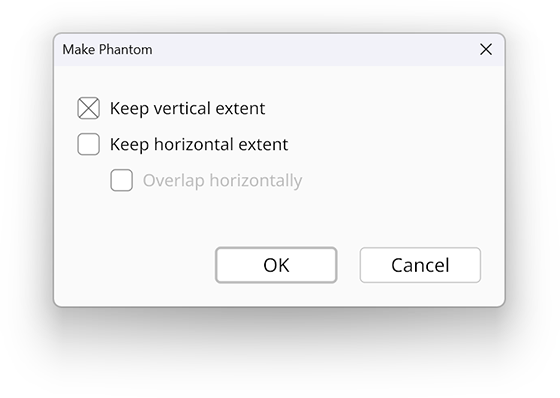
The first two check boxes let you specify whether the vertical extent is preserved, the horizontal extent is preserved, or both. At least one of these must be selected. If the horizontal extent is preserved, then you can further specify that any expression following the phantom overlaps the phantom itself, which essentially lets you specify the minimum amount of space to be occupied in the equation.
Once a phantom has been created, the expression is contains disappears and is replaced by a colored indicator, which is purple by default, showing that a phantom is present. This indicator is not actually part of the equation does not show up outside the editor. Phantom visibility can be toggled on and off by selecting Phantoms from the View menu.
Phantoms can be selected, copied, and pasted just like any other part of an equation. To remove a phantom from an equation, simply delete it.
To change an existing phantom’s properties, select the phantom and choose Properties... from the Edit menu, or type the shortcut Ctrl+P. This causes the same dialog box shown above to appear, and changes can be made to which extents are preserved.
A phantom can be released, and its original contents can be restored by selecting it and choosing Release Phantom from the Equation menu.