 |
Radical Pie Equation Editor |
Subscripts and superscripts can be added to an equation by selecting them from the first row of the structures palette, shown below. Since these are very common, most users will prefer to use the shortcuts Ctrl+L and Ctrl+H (for low and high) to insert subscripts and superscripts, respectively. In MATH mode or CHEM mode, typing an underscore _ will insert a subscript, and typing a caret ^ will insert a superscript.
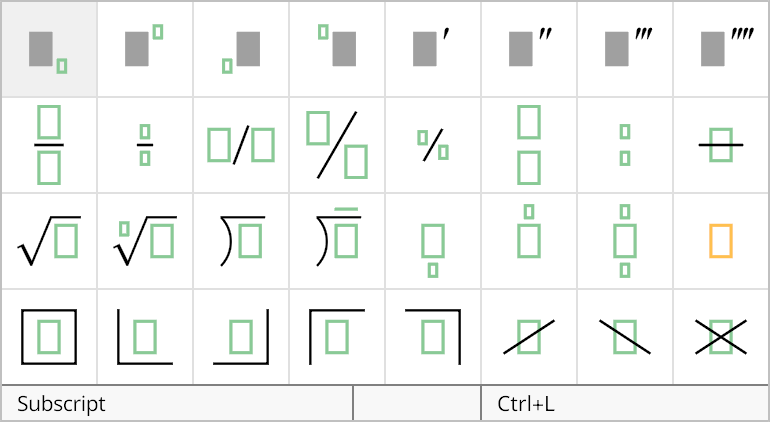
To add both a subscript and superscript to a symbol, first add one of them, and then type Tab or Right Arrow to exit the script group, which will move the insertion caret to the right of the script in the containing group. At this point, add the other script, and it will automatically be combined with the first one so the superscript is on top of the subscript. In cases where you actually want one script to be placed to the right of the other, insert a zero-width space after the first script before adding the second script.
Subscripts and superscripts can also precede the symbol to which they apply, and the specific scripts intended for this purpose should be selected from the palette in these cases. The shortcuts for preceding scripts are Ctrl+Shift+L and Ctrl+Shift+H, with the Shift key included. When inserting a preceding subscript or superscript, place the insertion caret to the left of the symbol to which they apply.
The properties of a script structure can be changed in the Script Properties dialog, shown below. This dialog is opened by selecting Properties... from the Edit menu or typing the shortcut Ctrl+P while the insertion caret is inside either the subscript or superscript group belonging to the script structure.
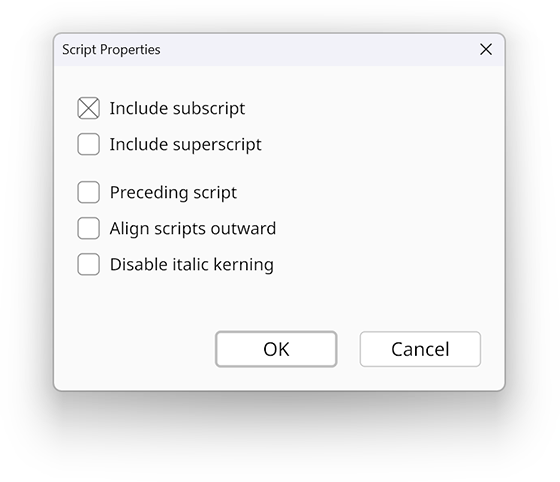
The Include subscript and Include superscript boxes determine whether a subscript group or superscript group is present in the script structure. At least one of these boxes must be checked.
If the Preceding script box is checked, then the script structure applies to the symbol immediately to its right. Otherwise, the script structure applies to the symbol immediately to its left. This effects the spacing and kerning used by the script structure.
If the Align scripts outward box is checked and both a subscript and superscript are present, then they are aligned so their right edges match for an ordinary script and so their left edges match for a preceding script. That is, the scripts are pushed outward as necessary to align the edge that is farthest from the symbol to which the script structure applies.
If the Disable italic kerning box is checked, then scripts are not moved inward where possible to account for empty space usually attributable to an italic symbol. If this box is not checked, then the subscript of an ordinary script structure can be moved left a little bit, and the superscript of a preceding script structure can be moved right a little bit in order to achieve better spacing.