 |
Radical Pie Equation Editor |
In Radical Pie, there is a main equation that is always present. Drawing objects can be attached to anchors in the main equation, and additional annotations can be attached to drawing objects or other annotations. An annotation is a separate equation, which itself can have drawing objects attached to it, which can have additional annotations attached to them, and so on.
Annotations are added to an equation by using the Annotation Tool, which is selected in the following screenshot. When the Annotation Tool is active, a set of anchor points appear where annotations can be attached. This is different from the set of anchors where drawing objects can be attached. Simply click on one of the anchor points to create a new annotation, and the green outline of an empty group will appear.
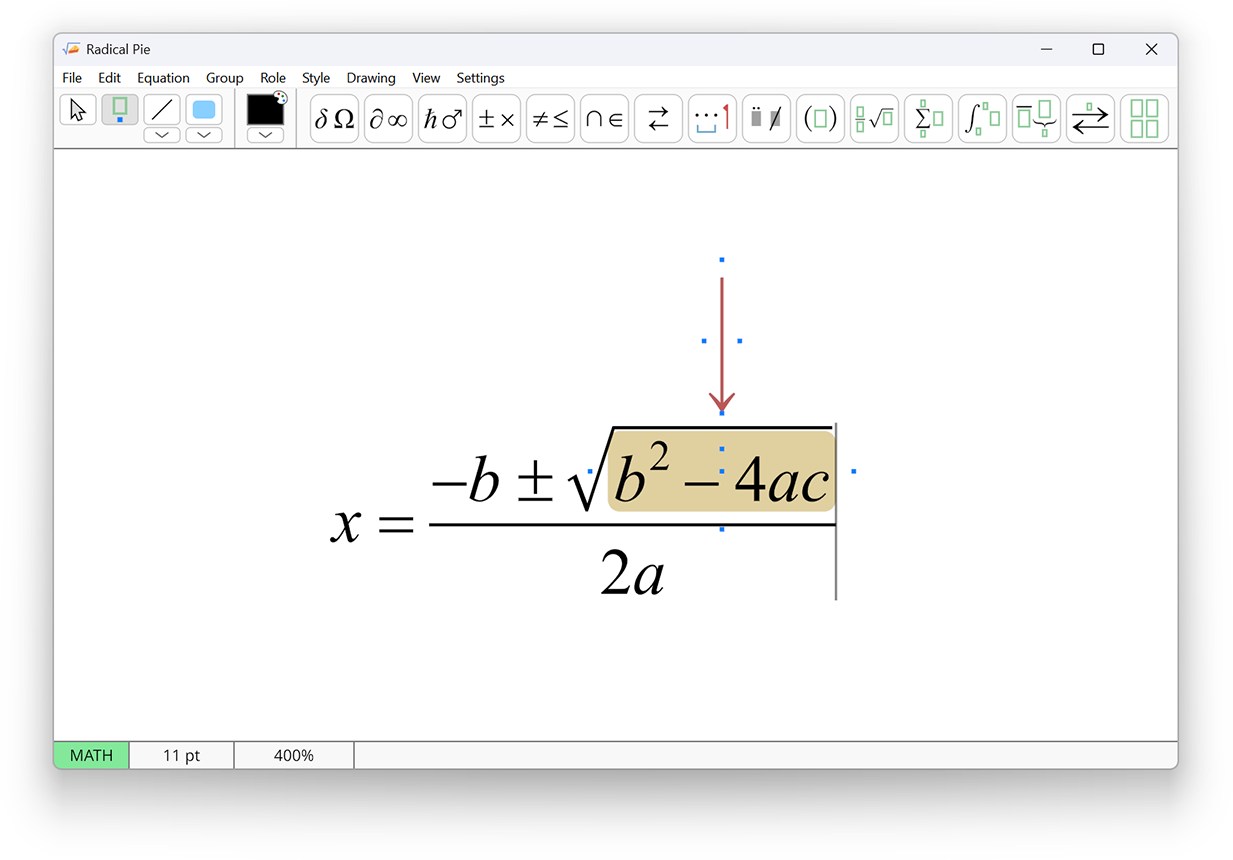
As shown in the screenshot, annotation anchors are placed at the beginning and end of every line object. They are also placed on both sides of a line at its halfway point. For shapes with area, annotation anchors are placed above, below, to the left, and to the right of the boundary. One more anchor is placed right in the middle of a shape so a label can be placed inside.
An annotation can be selected by right-clicking on its outline, which appears when the mouse cursor hovers over the boundary of the annotation. Left-clicking inside an annotation places the insertion caret in the annotation’s equation. It’s possible for an annotation to occupy some of the same space as the main equation, and introduces the question of whether a left-click was intended for the main equation or for the annotation. To resolve the ambiguity, the main equation takes precedence when the Edit Tool is active, and the annotation takes precedence when the Annotation Tool is active. If you find youself unable to place the insertion caret in an annotation, switch to the Annotation Tool before left-clicking in the annotation’s equation.