 |
Radical Pie Equation Editor |
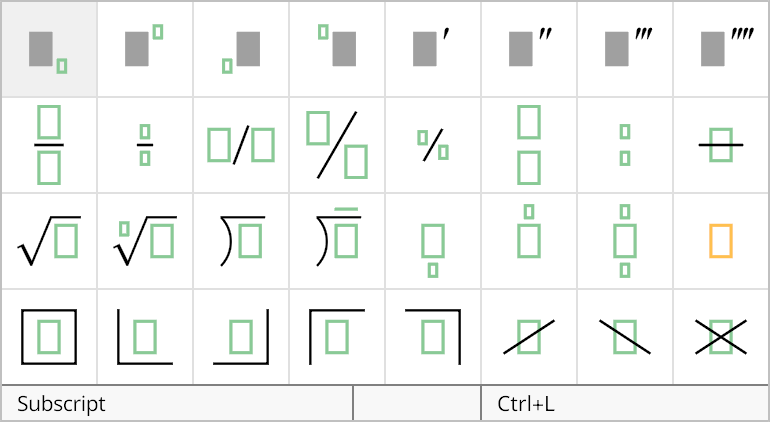
A radical can be added to an equation by selecting it from the third row of the structures palette, shown below. The shortcut Ctrl+R can be used to quickly insert a new radical. If you need a degree, then use the shortcut Ctrl+Shift+R.
The properties of a radical structure can be changed in the Radical Properties dialog, shown below. This dialog is opened by selecting Properties... from the Edit menu or typing the shortcut Ctrl+P while the insertion caret is inside any one of the groups belonging to the radical structure.
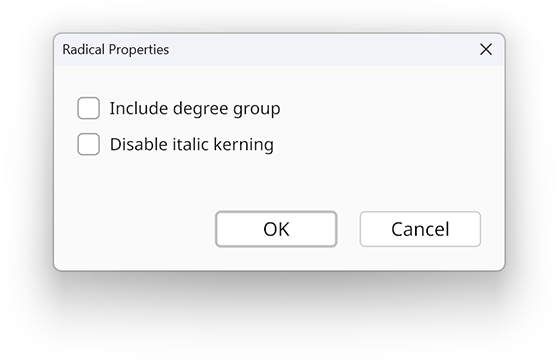
If the Include degree group box is checked, then the radical structure includes a group above the surd to hold a degree (or any other expression) in addition to the radicand.
Normally, the radicand is shifted left a little to account for extra space between the surd and the beginning of the expression under the radical that can appear too large, especially when the first symbol is italic. If the Disable italic kerning box is checked, then this adjustment is disabled.