 |
Radical Pie Equation Editor |
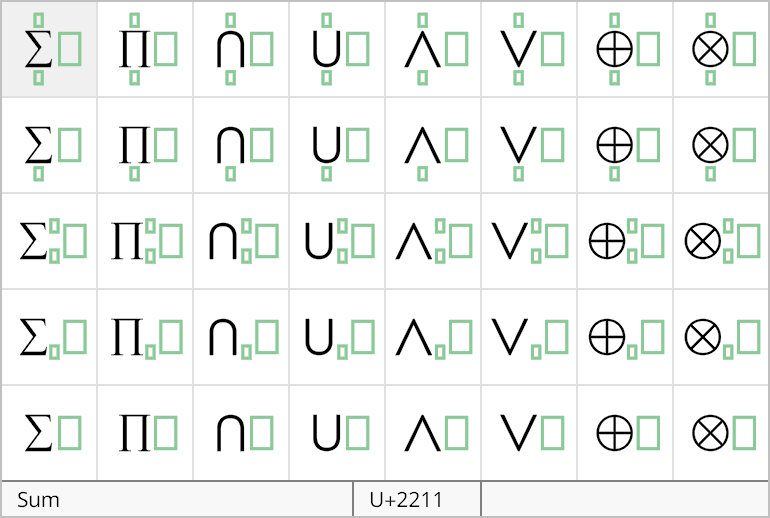
An iteration is the generic name given to a sum, product, or any other binary operation that is performed over an index set of some kind. Iterations can be added to an equation by selecting them from the iterations palette, shown below. Each column in this palette contains the same operation with several different options for limit placement.
The properties of an iteration structure can be changed in the Iteration Properties dialog, shown below. This dialog is opened by selecting Properties... from the Edit menu or typing the shortcut Ctrl+P while the insertion caret is inside any one of the groups belonging to the iteration structure.
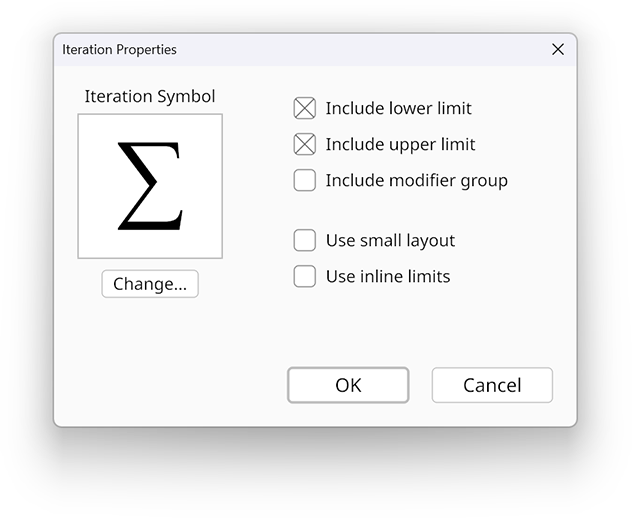
The iterations palette contains eight common operations, but any symbol can be used for an iteration. Click the Change... to select a different character.
The Include lower limit and Include upper limit boxes determine whether lower and upper limit groups are present for the iteration. It’s possible to show both limits, only one limit, or no limits at all.
If the Include modifier group box is checked, then an extra group is placed near the upper-right corner of the iteration symbol. This group is useful for holding some kind of modifier symbol for the iteration such as an asterisk or prime tick.
If the Use small layout box is checked, then a smaller iteration symbol is used, which is suitable for inline equations. Otherwise, a larger symbol size is used, which is suitable for displayed equations.
If the Use inline limits box is checked, then the limits are placed to the right of the iteration symbol (and after the modifier group if it exists) like a subscript and superscript. If this box is not checked, then the limits are placed above and below the iteration symbol.
When the insertion caret is inside any of the groups belonging to an iteration structure, you can use the Cycle Layout Variants command in the Equation menu, or the shortcut Ctrl+Y, to cycle through the four possible combinations of small layout and inline limits options.