 |
Radical Pie Equation Editor |
Three kinds of fractions can be added to an equation by selecting them from the second row of the structures palette, shown below. The first kind is a vertical fraction in which the numerator is stacked directly on top of the denominator. The second kind is a horizontal fraction in which the numerator and denominator share a common baseline, and they are separated by a slash. The third kind is a diagonal fraction in which the numerator and denominator are separated by a slash, but the numerator is raised above the baseline, and the denominator is lowered below it.
Vertical and diagonal fractions have two variants, a full-size version and small version. The shortcut Ctrl+R can be used to quickly insert a new full-size vertical fraction, and the Ctrl+Shift+R will give you the small vertical fraction. A horizontal fraction can be inserted with the shortcut Ctrl+/. Diagonal fractions can be inserted with the shortcuts Ctrl+Alt+/ and Ctrl+Alt+Shift+/.
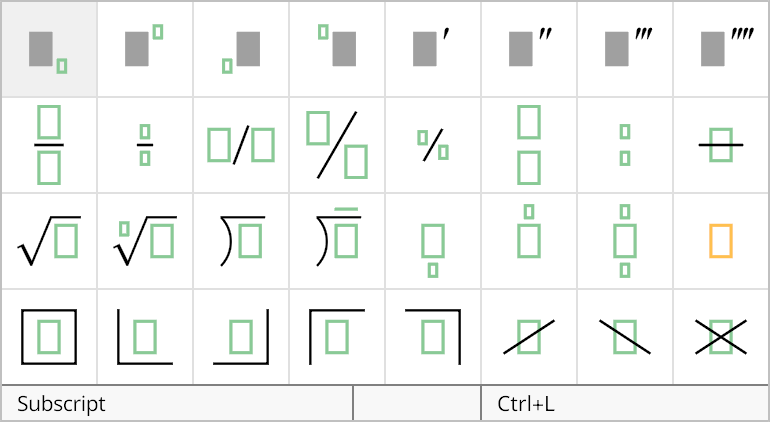
There are two additional vertical fractions in the palette, full-size and small versions, that do not have a fraction bar. These are useful for typesetting binomial coefficients, and since they are actually implemented as fractions, they are guaranteed to have the same vertical spacing, as shown in the following example. The shortcuts Ctrl+Alt+F and Ctrl+Alt+Shift+F can be used to quickly insert binominal coefficients.

The properties of a fraction structure can be changed in the Fraction Properties dialog, shown below. This dialog is opened by selecting Properties... from the Edit menu or typing the shortcut Ctrl+P while the insertion caret is inside either the numerator or denominator group belonging to the fraction structure.
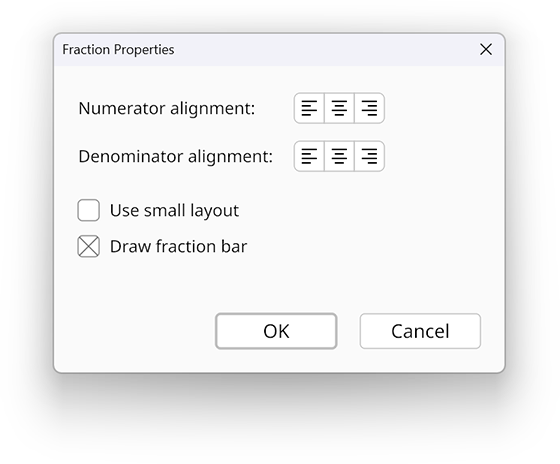
The alignment controls determine the group alignment for the numerator and denominator. If no alignment is selected, then the default alignment is applied, which is always center alignment for a fraction.
If the Use small layout box is checked, then the fraction is laid out in a smaller form suitable for inline equations. This applies to vertical and diagonal fractions but not horizontal fractions. You can quickly cycle between full-size and small versions of a fraction in the main editor by using the Cycle Layout Variants command in the Equation menu, or using the shortcut Ctrl+Y, while the insertion caret is inside either the numerator or denominator group belonging to the fraction structure.
If the Draw fraction bar box is checked, then a bar is drawn in the fraction. Otherwise, the bar is left out. This setting applies only to vertical fractions. The slash is always drawn for horizontal and diagonal fractions.
For a horizontal fraction, the numerator and denominator are shifted inward a little to account for extra space around the slash that can appear too large, especially when the symbol closest to the slash is italic. If the Disable italic kerning box is checked, then this adjustment is disabled.