 |
Radical Pie Equation Editor |
A large variety of brackets can be added to an equation by using the brackets palette, shown below. We use the term brackets to refer to any delimiting symbols that begin and end a grouped expression including parentheses, square brackets, angle brackets, braces, and absolute value bars.
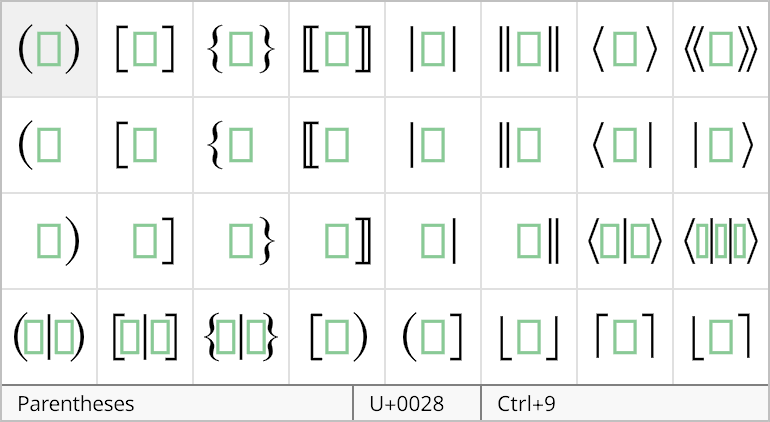
Most brackets have a single group in between two enclosing symbols, but there may be multiple groups separated by a third symbol. This is commonly used for set builder notation or bra-ket notation, where two groups are separated by a vertical bar.
The left and right symbols belonging to a bracket structure do not need to match, and several cases in which they don’t match are available in the palette. For example, an interval that’s closed on one end and open on the other is often represented by a bracket and parenthesis paired together.
A bracket structure may have a symbol only on one side. This would often by used to typeset cases grouped by a left brace, as shown below. In this example, a bracket structure having only a left brace and no symbol on the right contains a single group that has multiple lines.

The symbols used by a bracket structure can be changed to arbitrary Unicode characters in the Bracket Properties dialog, shown below. This dialog is opened by selecting Properties... from the Edit menu or typing the shortcut Ctrl+P while the insertion caret is inside any one of the groups belonging to the bracket structure.
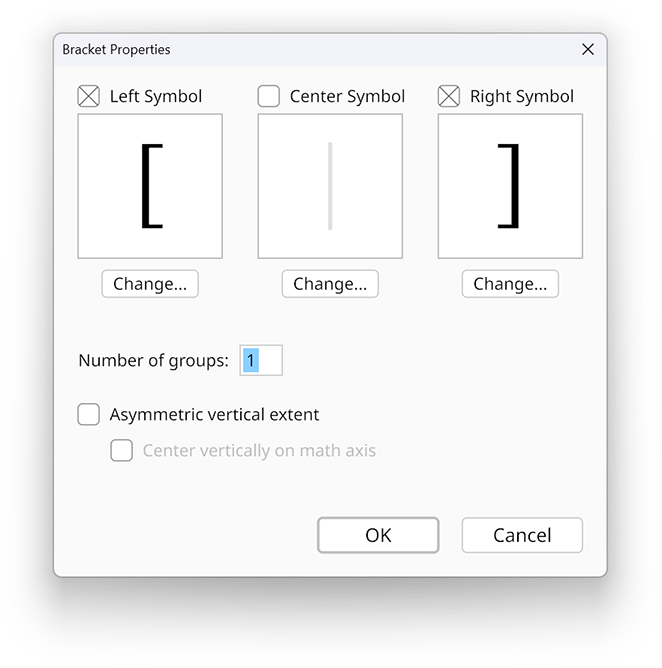
The number of groups in a bracket structure can be increased to a maximum of nine, and the same center symbol is placed between all of them.
Brackets support three different vertical alignment modes. By default, the bracket symbols are vertically centered on the math axis and extend equally both upward and downward in order to enclose the highest and lowest points of any expression inside. If the Asymmetric vertical extent box is checked, then the bracket symbols are instead centered at the vertical average of the highest and lowest points, which is usually not the same as the math axis. If the Center vertically on math axis box is also checked, then the contents of the bracket structure are shifted so that their vertical center aligns with the math axis of the surrounding expression. You can quickly cycle through these options in the main editor by using the Cycle Layout Variants command in the Equation menu, or using the shortcut Ctrl+Y, while the insertion caret is inside any one of the groups belonging to the bracket structure.